Add MobilityArena as a preferred source on Google
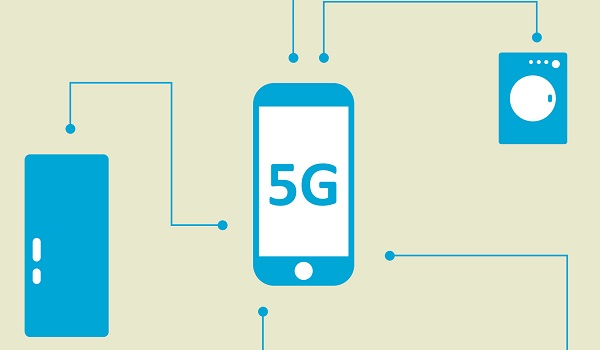
What is 5G ? If you have asked that question and also wondered when the first 5G networks and smartphones will arrive, we have all the information you need.
There is a lot of buzz building around 5G technology. It is the 5th generation of mobile internet technology and will deliver many times the speed of 4G LTE. Progress is good and we must embrace it.
What is 5G?
5G refers to the next generation of mobile technology after 4G. In other words, the 5th generation. It offers much faster speeds and a more robust service than older mobile technologies.
How Fast is 5G?
The theoretical download speeds for 5G connections are in the range of 1-20Gbps. For the heaviest internet tasks that you and the average mobile consumer engages in, you do not need more than 5Mbps in internet speed. And 4G delivers that already. And 4G technology keeps improving, with some of the most recent capable of speeds up to 2Gbps.
Whether you are downloading a game or streaming a 1080p video, 5Mbps is more than adequate. Of course, heavier downloads will run faster with faster internet, so nobody is going to frown at a 30Mbps download speed. Again, 4G has you covered there too. What do you really need 1Gbps internet speed for? I can tell you: for the future.
5G Is The Future
Have you noticed how higher quality video formats keep being created? Or how apps keep getting heavier with each passing year? Media just gets heavier and heavier, and we can expect that trend to continue.
So, in another few years, we will have something better than 4k video. We will have heavier apps and media formats. Virtual reality and augmented reality will require more robust and faster internet speeds. Self-driving cars, flying taxis and delivery drones will also be exchanging information all the time. 1Gbps on a 5th generation network will be essential, then.
When is 5G Coming?
Having said that, you are probably asking, “ When will 5G be available? ” or “ How soon is 5G coming? ” There are a number of components to this. The first has to do with 5th generation mobile networks. Another is about the devices – routers, modems, and smartphones.
Let’s talk about the networks first. How soon will we see the first 5G networks? The world’s first commercial 5G network was launched in Qatar in May 2018, followed by 5G networks in Finland and Estonia a month after.
Other countries like Germany, Russia, South Korea, and Spain have pre-commercial demonstration networks up and running already too. Others like the Philippines, Bangladesh, and Indonesia are at different stages of rolling out 5th generation networks.
At least 3 US carriers have committed to rolling out their first 5G networks by the end of 2018 . The first 5th generation smartphones and modems are being expected in 2019. On the device’s end, the first set are expected to hit the market by early to middle 2019.
The Transition From 4G To 5G
For now, 4G is all you need, and it is all that most people will get for years to come. 4G has been around for about a decade (the first LTE network was launched in December 2009), yet many countries are just getting 4G LTE networks. Even in the most advanced mobile markets, 4G is yet to be ubiquitous.
Plus, the first 5th generation networks will run on the same infrastructure that existing 4G LTE networks use. Infrastructural capacity will be upgraded over time. So, yes; for some more years to come, 4G is all you are likely to get. The good news is that 4G is all you really need for now anyway.
- Don’t miss our reviews .
- Follow our news on Google News .
- Join our WhatsApp Group , to be notified of the most important articles and deals,
- Follow us on Instagram , Facebook , Twitter , and YouTube .
Author:InfoDesk
Add MobilityArena as a preferred source on Google
What is ICE Emergency Contacts in a cell phone? Does your smartphone allow you to specify ICE contacts that can be dialled even when the phone is password-locked? How can you add ICE emergency contacts to your cell phone?
I had a conversation about how smartphones should be able to specify emergency contacts that can be dialled even when the phone is locked. It was then I found out that Samsung has that feature built into its smartphones. I was able to specify five emergency contacts (or ICE contacts) and all of them can be dialled without needing my phone password.
- What is ICE Emergency Contacts?
- How to Add ICE Emergency Contacts to Your Samsung Phone
- How to Add ICE Emergency Contacts to itel Phone
- How to Add ICE Emergency Contacts to iPhone
- ICE Support on your Phone
- Locked Phones In Case of Emergency? Carry an ICE Card too
- Carry An ICE Card Too
What is ICE Emergency Contacts?

Let’s get started by answering the question, What does ICE stand for? ICE is an acronym for “In Case of Emergency”. It is a programme designed to enable first responders in an emergency – medics, police officers, firemen, et al – to contact the next of kin of the owner of a mobile phone.
The idea is that if you are ever in a fix and unable to speak or act, anyone who comes to your aid should be able to find and call your next of kin. The ICE programme was conceived in the mid-2000s and promoted by British paramedic Bob Brotchie in May 2005. Here were his thoughts:
“I was reflecting on some difficult calls I’ve attended, where people were unable to speak to me through injury or illness and we were unable to find out who they were. I discovered that many people, obviously, carry mobile phones and we were using them to discover who they were. It occurred to me that if we had a uniform approach to searching inside a mobile phone for an emergency contact then that would make it easier for everyone.”
I have multiple ICE Emergency contacts on my phone. Mrs. Mo is the primary one, but I also have a few other contacts, including police and fire service listed. Someone may need to call the fire service on my behalf one day, you know. Now, let us move on to how to add ICE emergency contacts to your mobile phone.
How to Add ICE Emergency Contacts to Your Samsung Phone
If you use a Samsung smartphone, it supports emergency contacts. Here is how to set them up.
- Lock your phone, then push the power button to wake up the screen.
- Tap or slide a finger on the screen to bring up the unlock password field. Tap the “ EMERGENCY CALL ” under the password box to enter the Emergency call menu.
- Tap the plus icon and unlock the phone when you are prompted. Tap Okay .
- You are now on the “ ICE – EMERGENCY CONTACTS ” page and all your contacts are listed there. Use the green plus button behind each contact to select those you want to use as ICE.
- At the top of your contacts list on that same page is a special contact named “Emergency medical information”. Tap it to add any special medical info here, for example if you are diabetic or asthmatic, have an allergy or have a special blood need. When done, tap Save at the top of the screen.
That is it. From now on, anyone can access those ICE Emergency contacts you selected without unlocking your phone. All they have to do is push the power button to wake up your screen, and tap the emergency call button under the password box.
How to Add ICE Emergency Contacts to itel Phone
I tried out the process on the itel P32 and found that the phone supports ICE emergency contacts too even when locked. The process of adding ICE is similar to that of Samsung and uit also has a field for entering medical information.
How to Add ICE Emergency Contacts to iPhone
- Open your iPhone’s Settings and tap Emergency SOS .
- Scroll down and tap SOS .
- Tap Set up Emergency Contacts in Health .
- Tap Create Medical ID .
- Check to be sure that the “Show When Locked” switch is green. You need your ICE contacts to be accessible even when the phone is locked, remember?
- Scroll down and tap Add emergency contact at the bottom of the screen.
- Tap the name of a contact you want to add as ICE. Specify a relationship when prompted. Tap a type of relationship e.g., mother, partner, etc. Repeat this for as many contacts as you want to add.
- Tap Done and that is it.
ICE Support on your Phone
Not every smartphone has the option to add emergency contacts. In the case that yours does not have it, you can manually add them by editing the contacts you want to use and adding “ICE” in front of their names, e.g. “ICE Yomi Adegboye”. You can save multiple emergency contacts by listing them as ICE1, ICE2, ICE3, etc.

ICE emergency contacts
Locked Phones In Case of Emergency? Carry an ICE Card too
For security purposes, many mobile phone owners, like myself, lock their mobiles, requiring a password or passcode to be entered in order to access the device. This hinders the ability of first responders to access the ICE phone list entry.
For such users, it is not a bad idea to have an ICE card in your wallet or purse at all times. That would be a cardboard card with the heading as “ICE” that lists numbers you want called in an emergency, as well as any unique medical facts that rescuers and medics will find useful in attending to you in an emergency.
For example, if you are diabetic or hypertensive, your ICE card should state so. Put your ICE card in the same location as your ID card in your wallet. Effective.
Carry An ICE Card Too
In addition to adding ICE contacts to your phone, it is also a good idea to put an ICE card in your wallet. The card should specify your emergency contacts and any special medical information. That way, you have two possible ways for first responders to help you out in an emergency.
Whatever solution works for you, do get on the ICE programme. None of us looks forward to accidents and emergencies, but it is a fact of life that they happen, and an initiative of this sort might just make a huge difference whenever life throws its odd curveballs.
- Don’t miss our reviews .
- Follow us on Instagram , Facebook , Twitter , and YouTube .
Author:Mister Mobility
Digital Skills and Communication Coach | Mobile Phone Connoisseur since 2001 | Tech Blogging since 2004
