Add MobilityArena as a preferred source on Google
Google Meet is a versatile platform that has become the default choice for a large number of organizations and individuals who work remotely or simply want to connect with friends across borders. It functions like other virtual meeting software, with features such as auto-generated captions and Companion Mode .
It is a Google Meet feature that allows you join a meeting with two devices at a time. It’s useful if you’re presenting to a group and some files are on your computer while others are on your mobile phone. This guide explains how to get started with using this Google Meet feature so you can supercharge your meetings and enjoy interesting discussions.

- What is Companion Mode on Google Meet?
- How Do I Start Companion Mode on Google Meet?
- How to Share Your Screen when Using Companion Mode on Google Meet
- How to Enable Closed Captions white using Companion Mode on Google Meet
- How to raise your hand while using Companion mode on Google Meet
What is Companion Mode on Google Meet?
Google Meet’s Companion mode allows each meeting participant to use a second screen to improve their user experience during a meeting.
This feature is useful for participants of a group meeting. They can raise their hand or send a message in the chat as an individual rather than the group in a meeting room. Splitting content between two devices also helps those with a single display declutter their screen.
How Do I Start Companion Mode on Google Meet?
You can easily get started with this feature in two ways: via the meeting invite link or via a special short URL. The first method, which involves starting Companion mode on Google Meet via a meeting invite link, goes thus:
● Click on the invitation link on your secondary device once you’ve received it.
● The browser will then display the “ Ready to Join ” screen.
● Allow the “ Ready to join ” screen to load.
● To join the meeting, click the Use Companion Mode link button.
The second way to start it is through the dedicated website. Follow these steps:
● Launch your preferred web browser.
● Visit g.co/companion
● In the “ Enter a code or link ” box, input or paste the meeting code or link.
● Select the Start Companion button.
Please keep in mind that when starting Companion mode on Google Meet, the audio and microphone will be disabled by default. This prevents audio echoes for both the user and other participants.
How to Share Your Screen when Using Companion Mode on Google Meet
Follow these instructions to share your screen when using the feature:
● Join the meeting
● At the bottom of your screen, click the Present Now button.
● Choose the content you want to present.
● Examine the sharing preview.
● To share your audio, check the Share system audio box.
● Click the Share button to make the content you’re sharing visible to everyone.
Alternatively, you can go to https://g.co/present on the web and enter the invite link or code to go directly to the screen sharing page.
How to Enable Closed Captions white using Companion Mode on Google Meet
If you have trouble hearing or understanding something while using the Companion feature on Google Meet, the Closed Captions feature may be useful. Closed Captions create a text log of what is being said in real time. Here’s how to enable it:
● After you’ve engaged in the companion mode
● Enable captions by clicking the Turn on captions button.
● The captions will be displayed at the bottom of your screen.
How to raise your hand while using Companion mode on Google Meet
A question may arise during a meeting, and attempting to ask by interrupting would be impolite. Google Meet includes a feature that allows you to raise your hand, just like in real life, so that the speaker can address your question.
Here’s how to use the feature:
● Join the meeting or wait for someone to let you in, if need be
● Signify hand-raising by pressing the Raise Hand button.
Author:Joan Agie
Add MobilityArena as a preferred source on Google
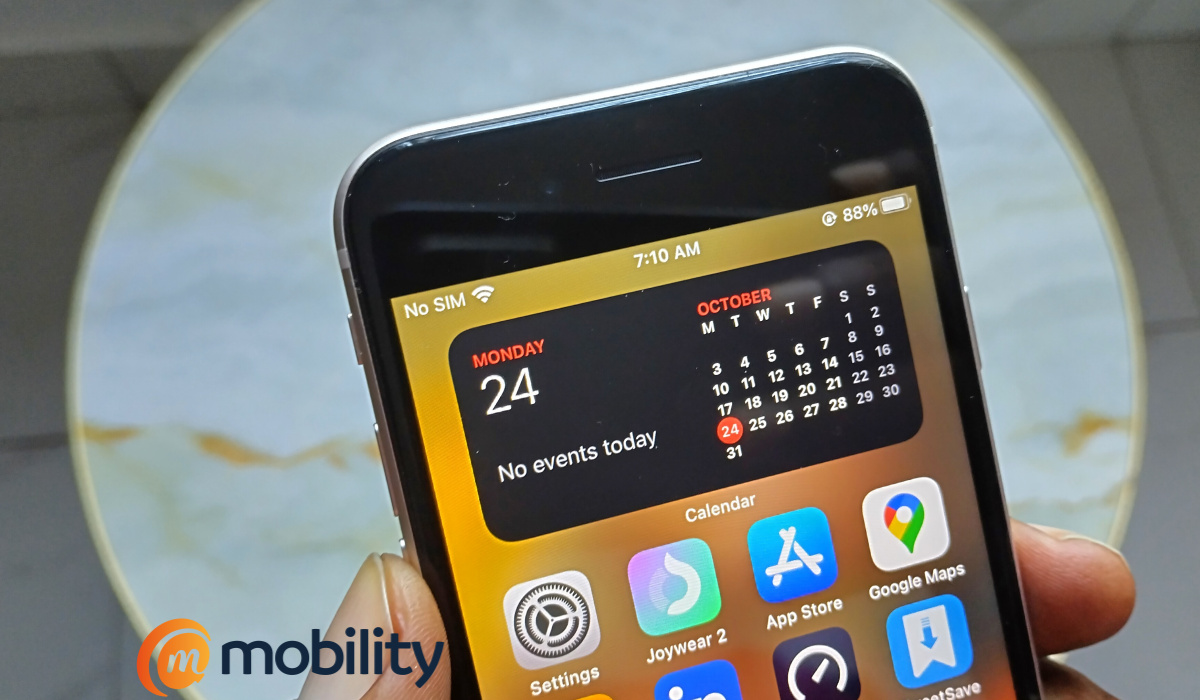
Modern smartphones are power-hungry, for a number of reasons, and the iPhone is no exception. As a matter of fact, iPhones have a reputation of many years for not having the best battery life. What can you do to make your iPhone battery last longer? Apart from the display of your iPhone, which is very obvious, some of the other top battery drainers are not so obvious, because they are hidden away.
Those pesky background activities eat up a good chunk of your iPhone’s charge. One of the ways to fix this is to disable a few things that run in the background. Let’s get right to helping you make your iPhone battery last longer.
- Make your iPhone battery last longer by turning off Background App Refresh
- Improve your iPhone’s battery life by disabling Siri & Search notifications
- Improve your iPhone’s battery life by disabling some location services
Make your iPhone battery last longer by turning off Background App Refresh
There are apps constantly refreshing data in the background. This happens whether you are actively using your iPhone or it is laying there on your desk in standby mode. To improve battery life, you need to disable background app refresh on your device. Here is how to do it.
- Open Settings .
- Tap on General .
- Scroll down till you see Background app refresh ; tap on it to open it.
- Tap Background App Refresh at the top of the page.
- In the next page, select Off .
Alternatively, you can turn off Background App Refresh only for selected apps. To do this, follow the above steps to Step 3. You will see a list of apps that refresh in the background. Toggle off each one that you want to disable from refreshing in the background.
Improve your iPhone’s battery life by disabling Siri & Search notifications
You can make your iPhone battery last longer by turning off a number of Siri & Search features, as follows:
- Open Settings
- Scroll down till you see Siri & Search ; tap on it.
- Disable Allow Notifications
- Disable Show in App library
- Disable Show when sharing
Improve your iPhone’s battery life by disabling some location services
Another thing you can do to make your iPhone battery last longer is to disable some location services. Note: some. I am sure you need location services active for a number of apps that you use, including Maps. But there are some location features that you do not use on the regular and can be safely turned off to preserve your iPhone’s battery life.
- Open Settings
- Scroll down to Privacy & Security , and tap on that
- Tap on Location Services
- Tap on System Services
- Disable Location-Based Alerts
- Disable Location-based Suggestions
- Disable iPhone Analytics
- Disable Routing & Traffic
Just by disabling the above features, you will get improved battery life on your iPhone, regardless of the model.
Author:Mister Mobility
Digital Skills and Communication Coach | Mobile Phone Connoisseur since 2001 | Tech Blogging since 2004
