Add MobilityArena as a preferred source on Google
The first crypto coin that emerged in the market was Bitcoin. It was built on the Proof-of-Work consensus, which means the production of each coin was done by computers’ work. The second-popular crypto – Ethereum – was first based on the same principle. Ethereum used to be mined the same as Bitcoin. Mining complexity is increasing over time. Besides, it needs complex preparation – buying expensive, powerful machines and organizing space with enough ventilation, etc.
Later, Proof-of-Stake projects started to emerge, and one of the earliest was Solana. What is the difference between these blockchains and where to buy crypto? Let’s discuss it.
What is Solana?
The same as the Ethereum blockchain, Solana is used by developers for building and deploying decentralized applications, smart contracts, games, NFT marketplaces, etc. There was a time when the Ethereum network’s throughput was not enough for so many applications built on it, and its transaction costs increased. That time, Solana took the initiative – developers started to massively use this network for building their products on the Solana blockchain.
Solana solved many problems people faced working on the Ethereum network:
- The network proceeds 65,000 transactions per second.
- The commission is low – $0.00025
- Staking is much simpler than mining and is available for anyone.
Staking means generating new crypto coins by holding existing coins on the network. Unlike mining, staking does not need any expensive machines and additional space – just a laptop and connection to the Internet will be enough.
Recently, Ethereum moved to the Proof of Stake mechanism too. It allowed for reducing transaction costs and facilitating the speed of their proceeding.
Here is some comparison:
Solana price is $22.54; Ethereum rate is $1,576.
Solana is more scalable and consumes less memory than Ethereum.
Solana uses more common programming languages compared with Ethereum.
Solana has more shutdowns because of hacker attacks.
Solana performs 50,000 TPS, Ethereum – 30 TPS.
Don’t miss our mobile phone reviews .
Join our WhatsApp Group , to be notified of the most important articles and deals,
Follow us on Instagram , Facebook , Twitter , and YouTube .
Author:Content Partner
Add MobilityArena as a preferred source on Google
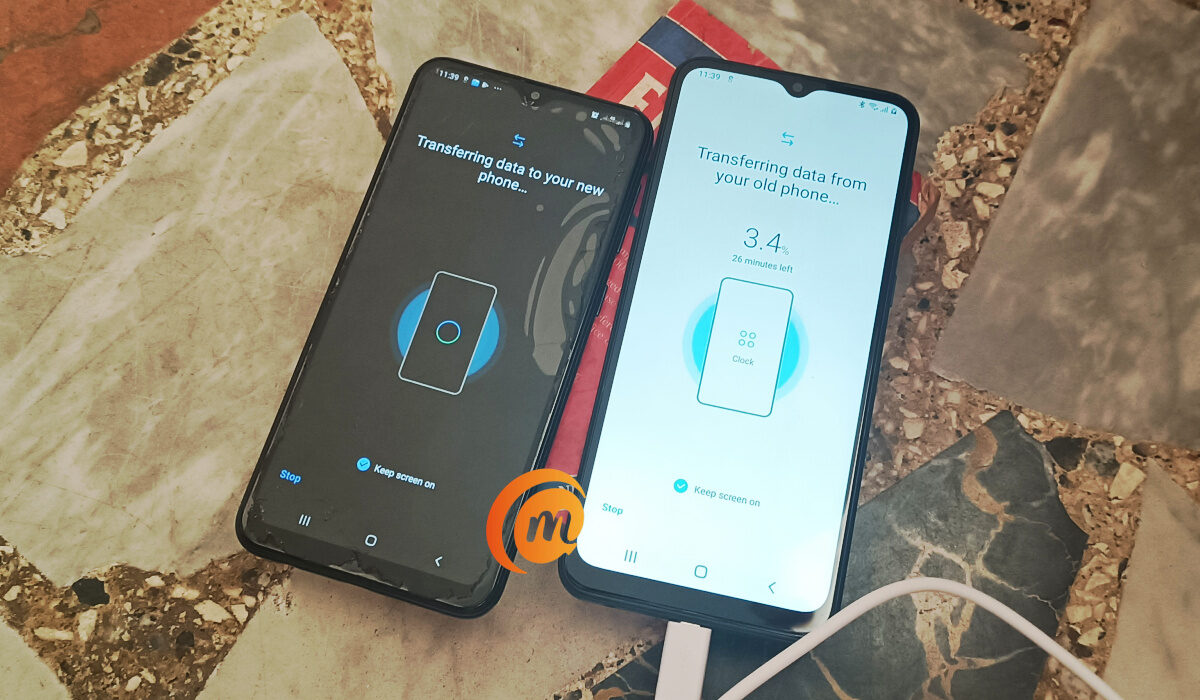
Moving data from an old android smartphone to a new one is most important when it comes to switching smartphones. You could have pictures, videos, documents, work-related data, account information, etc, that you will most definitely need. Transferring this data is relatively easy, and stressless, for the most part. You might have to do some waiting for the transfer to be fully complete.
Note that some brands have their own custom solutions to help you copy or transfer data from an old phone to a new one. Samsung is one of them and you can move files seamlessly with the Smart Switch app (see our Samsung Galaxy A03 Core review ).
- Things to note before you start the transfer
- How to transfer data from an old Android phone to your new one
- How to copy data from an old Android phone to your new one, manually
Things to note before you start the transfer
- Ensure that both devices are charged.
- Ensure that you can unlock both devices with whatever PIN, password, or pattern you have set (if there are any).
- Sign into your Google Account on your old account
- If you do not have a Google Account, create one on your old device.
- Backup your data.
- Ensure that you have a stable Wi-Fi connection.
How to transfer data from an old Android phone to your new one
Note that the steps on your phone might vary from the ones I am about to list but the same logic applies.
- Turn your new device on.
- Tap on “Start”.
- Ensure that you connect to a stable Wi-Fi network.
- Opt to copy data and apps from your old device.
You will be given the option of using a cable to connect both devices and another if you do not have a cable.
- If you do have a cable, follow the on-screen instructions to copy your data.
- If you do not have a cable, tap on the “No cable?” option.
- Tap “A backup from an Android phone”.
- Follow the on-screen instructions to copy your data.
How to copy data from an old Android phone to your new one,manually
If the steps above somehow cease to work, you can manually transfer and sync your data with both phones (old and new).
Copy your contacts
If you have your contacts saved on your Google Account, then they will automatically sync to your new phone when you sign into the account. If you don’t have them saved to your Google Account, you could simply transfer your SIM card from your old one to your new one.
Copy your Music
The same applies to your music as it does your contacts. If you have signed into your different music streaming services like YouTube Music, Spotify, etc, with your Google Account, or any account. Simply sign into the apps on your new phone and all of your music will sync automatically.
Copy photos, videos, files, etc.
Again, if you have all of these backed up with your Google Account, or Google Drive, they will automatically sync and show in their respective apps. You can find photos and videos in your Google Photos app, while you can find files and folders, in your Files app or on Google Drive.
Copy calendar events
If you already use Google Calendar, your calendar events will automatically display when you open the Calendar app.
- Don’t miss our mobile phone reviews .
- Join our WhatsApp Group , to be notified of the most important articles and deals,
- Follow us on Instagram , Facebook , Twitter , and YouTube .
Author:Flamez
Flamez loves basketball, art, gadgets and cars.
