Add MobilityArena as a preferred source on Google
When your home button stops working on your Android smartphone, your world is on standstill as there is very little you can do with your smartphone in this condition. In this article, we show you how to work around this problem yourself.
The home button is one of the most important, if not the most important button on a smartphone’s display. It lets users enjoy a better smartphone experience and navigate between apps almost seamlessly.
However, there are times when this button starts malfunctioning. It could be due to a software glitch or some hardware issues, whatever the case is, a home button that malfunctions is annoying and can make your device unnecessarily slow. And this is why today, we are going to show you some quick tips to take care of your Android smartphone by yourself when your home button stops working.
- Restart your smartphone: As with many issues that beguile Android smartphones, restarting your smartphone when your home button stops working can help you regain control of your device and make it return to its normal operation. You can restart your smartphone by holding down the power button and clicking on the reboot option when it comes up. Your Android smartphone should start working properly once it comes on.
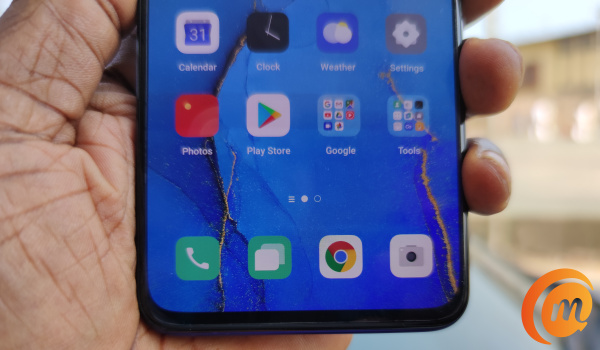
- Try resetting the phone in recovery mode: To reboot the Android device in recovery mode, follow these simple steps.
- Switch off your device.
- Hold down the power and volume down buttons simultaneously.
- Select Recovery mode .
- Select Factory Reset using the volume buttons to navigate the options.
- Try using a third-party app: You can also try using a third-party app when your home button stops working. One of such apps is Button Savior , which is available on Google Play Store . This app can help you navigate your Android device’s functions whenever your home button stops working, all you need to do is:
- Download Button Savior on your phone through the link above.
- Click open options by clicking on the toggle arrow at the edge of the screen.
- Pick the icon that helps you complete the action you want on your device. You can use this for a myriad of functions.
- Try clearing your cache partition: Your cache partition is a group of logs, temporary files and other bits of information from apps you have downloaded on your device. when you don’t clean this collection from time to time, it may begin to slow the phone and make the home button stop working. To tackle this problem, follow these simple steps:
- Turn off your phone and hold down the power and volume down buttons.
- Pick Recovery mode .
- Select Wipe Cache partition .
- Confirm your selection.
- Try a factory reset: If any of the tips above do not work, then you may need to go down the lonely, dark path of a factory reset. Just before you do this, ensure your device is in Safe mode. This will tell you if the source of the problem is a software or app malfunction. If you can, back up your data before trying a factory reset so you do not lose any important information. To carry out this reset, follow these steps:
- Navigate to Settings .
- Select Backup and Reset .
- Select Factory data reset.
- Select Reset phone .
- Insert your device’s password (if you have one).
- Select Erase everything .
These tips are particularly helpful when your home button stops working due to a software problem. If it is a hardware issue, these steps may not suffice and you may have to consult a technician before things get worse.
Author:Alfa Baye
Staff Writer
Add MobilityArena as a preferred source on Google
Technology has come a long way, with smartphones now fully touchscreen with no buttons. As beautiful as this may be, it presents a unique problem when your device’s display stops responding. This is why we have brought you a number of fixes for your Android device when its display malfunctions.
With the advent of touchscreen devices, phones with keypads have been slowly phased out, with most phone users preferring devices that have touchscreen displays due to its ease of operability and its versatility.
However, Android smartphones have periods where the display stops responding, rendering the device ultimately useless. This glitch may be due to a hardware issue or may be the result of a software problem. Whatever the case, we will be running through a number of quick fixes for your Android device when next the display stops responding.
- Try forcing a phone reboot: Normally, you’d need a working display to restart your android device, but in this scenario, you’ll need to try another approach. If your smartphone has a removable battery, try opening the back and taking out the battery, then power up the phone normally and the screen should return to its normal operations.
However, if you have a device with an inbuilt battery, you can force a restart by holding down the power and volume down buttons simultaneously for a couple of seconds. Your device’s display should go black, then try switching it on a couple of minutes later. This should restore your phone’s display to normal operations.
Take out the SD card and SIM card: Sometimes, a device’s display will not respond when the SD card or SIM card is faulty. If you are ever caught in this type of situation, try forcing your device off, then take out both cards and then turn the device on. If it works properly, then one of the cards (SD card or SIM card) is faulty, if it does not respond, we will try another method.
Try the factory reset option: Your Android display’s woes may be due to a new software update that’s faulty or some malicious app you may have mistakenly downloaded on your device. You can get rid of this and restore your device to its original settings (inadvertently solving the display issues) with a factory reset. However, it is advisable to back up important data before you begin this process. After this, you can follow these simple steps to reset your Android device:
- Navigate to Settings .
- Select Backup and Reset .
- Select Factory data reset
- Select Reset phone
- Insert your device’s password (if you have one).
- Select Erase everything .
- Remove your display’s protector: Most Android owners today have screen protectors to ensure that the display does not get scratches or dents from its everyday use. However, there are times where the screen protector may be preventing the device’s display from functioning properly. In this scenario, try removing the screen protector and see if the response rate improves. If it does, then the cause of the problem was from a wrong/ill-fitting screen protector.
These solutions above are best for Android devices whose displays stopped responding due to software glitches. If your smartphone display stops responding after some form of physical damage (say a liquid spilled on it or it dropped over a far distance), then you may need to consult a technician and have him take a good look at your Android’s display before it degenerates.
Author:Alfa Baye
Staff Writer
