Add MobilityArena as a preferred source on Google
I have been playing with the first smartphone to run Ubuntu for Phones, the BQ Aquaris E4.5 (See specifications and hands-on ) for a few days now. The 4.5-inch smartphone is an interesting device. It is fascinating because it is the first smartphone I am holding in years that lack both of the instant messaging apps that I use on a day-to-day basis – BBM and WhatsApp. Using such a phone simply leaves me with a feeling of being disconnected from the world. Remember my March 2015 article, The question of apps and services for Ubuntuphones .
There’s a Twitter app. And Facebook too. There’s even also Google Plus. So social sharing isn’t non-existing on the platform. But 95% of my personal communications happen on BBM and WhatsApp. At first, I kept wondering how anyone in 2015 is expected to be able to comfortably use a smartphone without BBM and WhatsApp. It took a while for it to filter in, but it did. There are people – lots of people – who do not use either of these platforms. Ubuntu OS has Telegram installed, but something tells me that a person who does not use WhatsApp or BBM is not likely to be aware of or even use Telegram.
Anyway, back to the point: there are people who would be at home with the Aquaris E4.5. I eventually began to ask myself if I could. Could I live comfortably without my IM apps? Perhaps life would be a lot less noisy. Perhaps a lot more quiet and focused. Would good old email, SMS, and phone calls do in 2015? I suspect that it is quite possible. I just am not sure if I am ready to test it out. So, for now, my primary SIM card stays in a phone that has my instant messaging apps running.
- Don’t miss our reviews .
- Follow our news on Google News .
- Join our WhatsApp Group , to be notified of the most important articles and deals,
- Follow us on Instagram , Facebook , Twitter , and YouTube .
Author:Mister Mobility
Digital Skills and Communication Coach | Mobile Phone Connoisseur since 2001 | Tech Blogging since 2004
Add MobilityArena as a preferred source on Google
Over the course of your using an Android device, one might run into this issue. Your phone or tablet suddenly begins to show this pop up message “Unfortunately, the process android.process.media has stopped” repeatedly. Sometimes, it is a variant of it, “ android media process keeps stopping ” that shows up. When this happens, you might not be able to perform some functions on your device. This can range from loss of pictures to the inability to save screenshots.
The android.process.media has stopped error is caused primarily because of issues with either of two applications on your phone – the Download Manager and the Media Storage. Or perhaps both of them.
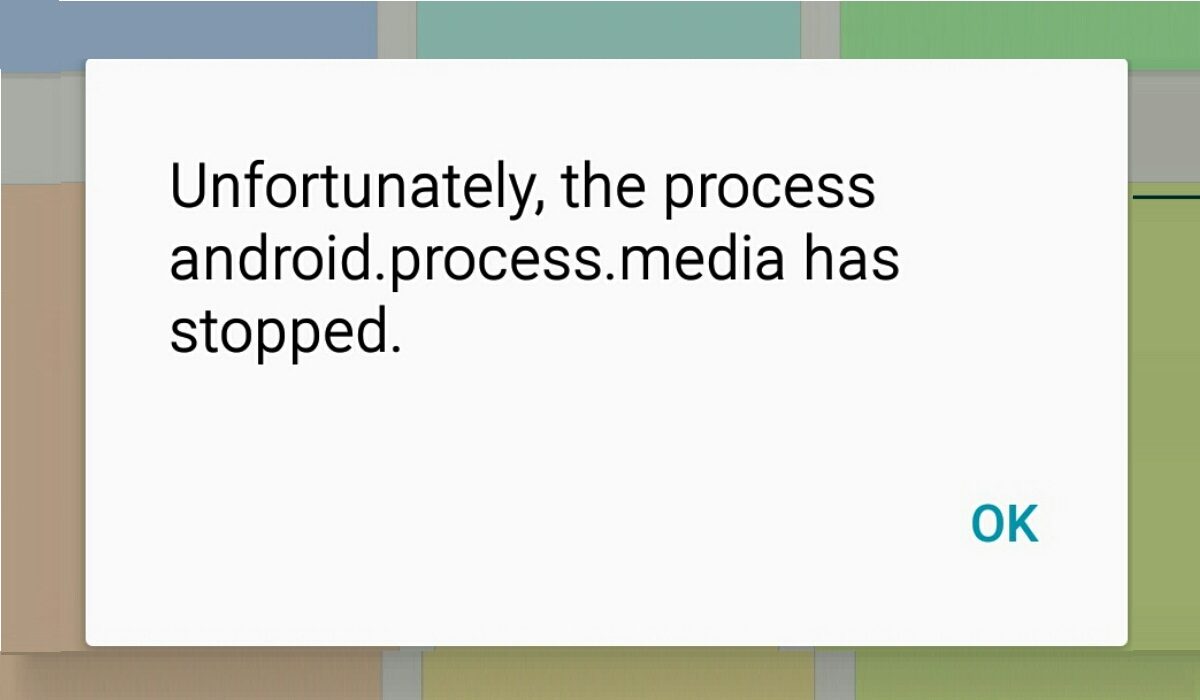
In any case, if you are being bugged by this error message, you may not need to have a technician look at your smartphone. There are some quick fixes that you can carry out yourself. We walk you through all the available solutions below.
- METHOD 1: Clear Cache & Delete Data
- METHOD 2: Reset App Preferences
- METHOD 3: Clear Contacts and Contact Storage
- METHOD 4: Disable the Media Storage
METHOD 1:Clear Cache & Delete Data
The most common solution to the android.process.media has stopped pop-up message is this. You have to clear your phone’s cache and then reboot the phone.
- Stop all Google Sync on the device: To do that go to Settings > Account > Google > untick of all the ticked items.
- Disable & Clear “Media Storage” data: Go to Settings > Apps > All Apps > find the Media Storage > Clear data > Disable.
- Disable & Clear “Download Manager” data : Go to Settings> Apps> All Apps> find the Download Manager >Clear data > Disable.
- Shutdown Your Device for 2-3 minutes, then Turn it ON.
- That’s all.
After this, after putting on the device, go back and:
- Tick all the Google Sync.
- Re-enable Media Storage.
- Re-enable Download Manager
The Android.process.media has stopped error message should go away now.
METHOD 2:Reset App Preferences
Another way to fix this issue is to reset app preferences for your phone.
To do this, go to Settings > Apps > All Apps > Press the phone menu button (Last button on the left)> Click RESET APP PREFERENCES.
This might solve the problem.
METHOD 3:Clear Contacts and Contact Storage
- Go to Settings >Apps > All Apps > Clear data on “Contacts” and “Contact Storage”. This could also fix the problem, though you stand the risk of losing your contacts. So remember to Backup before trying this method.
- Switch Primary Storage from SD Card to Phone Storage.
- Run a factory reset or Flash a custom ROM
METHOD 4:Disable the Media Storage
Another way to solve the Android.process.media has stopped error on your smartphone is to disable the media storage.
- On your smartphone, open Settings > Application Manager or “ Apps .
- Look for options on the top right and toggle “ Show System ” to enable you locate Media Storage from the list of applications if it isn’t already visible.
- Now search for “ Media Storage ” from the list and click on it. Then click Disable .
- That’s it.
It is advisable to first try METHOD 1 before trying the other methods. At least one of these methods should fix the Android.process.media has stopped error message and get rid of it.
Where all of the above interventions fail, one last action you can take to get rid of this error is to factory reset the device.
Author:Etoniru Chibueze
Chibueze is an award-winning gadget reviewer and geek. He loves research, while living and breathing tech. You can reach him on Facebook, Twitter ,OR LinkedIn
