Add MobilityArena as a preferred source on Google
Facebook owned social media messaging app, WhatsApp, has rolled out a system that will let users send funds to individuals or businesses within a chat, attaching payment just like a video or a photo. WhatsApp first tested this system in India early in 2018, with the Brazilian launch set to be the first nationwide rollout globally.
The company has a large user base in Brazil, boasting over 120 million individual users, making it the second largest just behind India. Chief Operating Officer of WhatsApp, Matt Idema, told Reuters in an interview that they look forward to helping digital payments grow and also help grow the digital economy for small businesses, while supporting financial inclusion.

With many of Brazil’s small businesses already using WhatsApp as an effective marketing tool, this new tool looks at making online payments easier, especially in a country still suffering the effects of the Covid-19. The payment system will use Facebook Pay and is expected to be free for individual users, while businesses will pay a charge for receiving payments.
The system will accept payments from credit and debit cards from Banco do Brasil, Nubank and Sicredi, while it is working with Cielo to help process payments. Reports also indicate that the company is planning to introduce this system to other regions later in the future. This new tool from WhatsApp could prove to be a life saver for a number of businesses that have battled with decent money transfer options in times past.
We would keep our eyes on Brazil to see how well this new tool performs in the South American nation.
References
- Source ;
- Source .
Author:Alfa Baye
Staff Writer
Add MobilityArena as a preferred source on Google
You must have been hearing about Dark Mode. That is a feature that changes the appearance of apps and software to a black or dark background. System-wide dark mode is available on smartphones running Android 10 or iOS 13 . If you want to enable Google Calendar Dark Mode in these new devices, it is a piece of cake.
But what if you own a smartphone running an older version of Android OS e.g. Android 8 Oreo or Android 7 Nougat? Is it doable? The good news is that it is. The process to enable Dark Mode in Google Calendar is the same and we walk you through below.
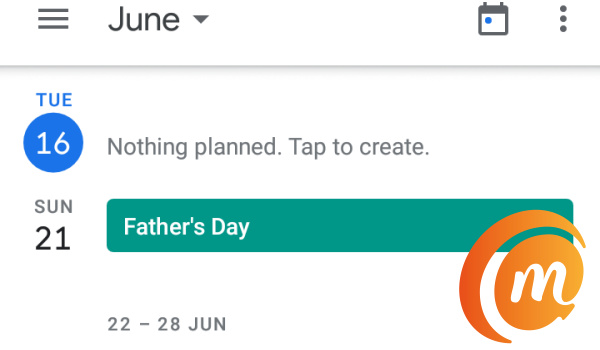
Google Calendar in Light Mode
- Enable Google Calendar Dark Mode on Android
- Enable Google Calendar Dark Mode on iPhone
Enable Google Calendar Dark Mode on Android
Here is how to enable Dark Mode in Google Calendar on an Android phones. Note that if you are using a phone that has an older version of Android OS, you need to update the Google Calendar app first from Google Play Store. This is to ensure that you get the version of the app that has Dark Mode option in it.
After updating your Google Calendar app, follow these steps:
- Open the Google Calendar app.
- Press the hamburger menu in the top-left corner of the screen.
- Scroll down and tap Settings , then select General .
- Tap Theme to open the Choose Theme dialog.
- Select one of the following available options:
- Light – selecting this keeps Google Calendar with a white background and black text
- Dark – select this to enable Dark Theme in Google Calendar
- System Default – this option is available only on Android 10 and newer phones; selecting it enables Dark Mode based on your system-wide choice
- Set by Battery Saver – this enables Dark Mode in Google Calendar only when Battery Saver is activated on your phone.
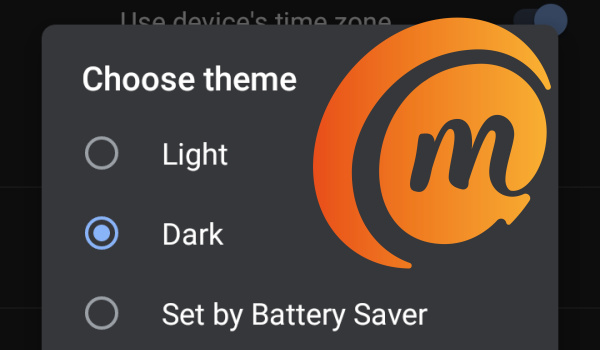
Select Dark to enable dark mode, and Google Calendar immediately gets a dark background or theme. The highlighted colors may be different, the background and navigation bar will now be dark grey. With dark mode on, you will now increase your battery life and reduce eye strain.
Enable Google Calendar Dark Mode on iPhone
Enablin dark mode for Google Calendar on an iPhone is just as easy, if not easier. Note that you need an iPhone running iOS 13 or later.
To enable dark mode in Google Calendar and all other apps on your phone, you have to activate system-wide dark theme in your phone Settings. Here are the steps to follow:
- Open Settings ,
- Tap Display & Brightness ,
- Select Dark .
Once you have done that, you can open the Google Calendar app and you will find that it now has a dark background. Easily done.
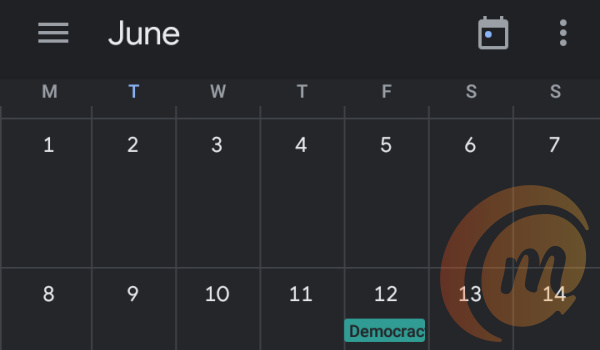
What are the benefits of dark mode? For one, it reduces the strain on your eyes, especially when using your phone in the dark. It also improves readability. If your smartphone has an AMOLED display, using dark mode will also have an impact on battery drain. AMOLED displays consume less power when using a black or dark background.
Note that after you enable Google Calendar Dark Mode, it does not change how the app works or any of its functionality. All previous functionality remain the same. With dark mode enabled, you can continue to use Google Calendar as you always have – to set reminders, appointments, and generally schedule your work and life.
