Add MobilityArena as a preferred source on Google
Connecting to Wi-Fi is like opening a door to a world of endless possibilities. It allows you to browse the web, stream your favorite shows, connect with friends and family, and so much more. However, what happens when you connect WiFi but no internet access-based actions work properly? It can be a real bummer.
In this article, I’ll explore some effective solutions to help you troubleshoot and fix this problem. Whether you’re using a smartphone, laptop, or any other device, I’ll walk you through step-by-step instructions to get your Wi-Fi connection up and running smoothly.

How Can You Fix When You Connect WiFi But No Internet Access?
There are a few possible reasons for experiencing the issue of connecting to Wi-Fi but not having internet access. It could be because of incorrect network settings, router problems, or interference from other devices. But don’t worry; here are some handy tips on how to fix that frustrating issue of connecting to Wi-Fi but not having internet access.
Check Your Connection
Verifying your Wi-Fi connection and signal strength is important for a smooth internet experience. Here’s how to check your Wi-Fi connection:
- Open your device settings by tapping on the gear icon or going to “ Settings “
- Look for the Wi-Fi option, usually represented by a Wi-Fi symbol.
- Make sure you’re connected to the correct Wi-Fi network by confirming the network name.
- Check the signal strength bars or the signal icon to ensure that it’s strong.
Forget and Reconnect to Wi-Fi
Forgetting and reconnecting to a Wi-Fi network helps refresh the connection by removing any saved settings or configurations that might be causing issues. It’s like giving your device a fresh start with the network, which can often resolve connectivity problems. To do so on your device, go to Wi-Fi settings, click the option to forget the network you’re having trouble with, and then reconnect to it.
Restart Your Device
To give your device a fresh start and establish a new connection, you can try rebooting it, it’s a handy troubleshooting step. Rebooting can help resolve software issues and get things running smoothly. On a PC, you can click on the Start menu or press the Windows key, look for the Power option, and select Restart from the menu. On a smartphone, you can usually find the restart option in the Power menu or by holding down the power button.
Reboot Your Router and Modem
Given that many network problems are typically related to the modem and/or router, it’s logical to consider rebooting them as the next step. Although certain routers provide the option to reboot through their interface, it’s not always necessary to use this feature. Simply unplugging the devices from the power source and then plugging them back in can often resolve the issue effectively.
- Locate your modem and router. They are usually separate devices, but sometimes they are combined into one.
- Find the power source for both devices and unplug them from the power outlet.
- Wait for about 10-15 seconds to allow them to fully power down.
- Plug the modem back in first and wait for all the lights to stabilize.
- Then, plug the router back in and wait for its lights to stabilize as well.
Check Modem Light
Checking the modem lights can help you identify any issues with your internet connection and provide useful information when troubleshooting. To check the modem lights, follow these steps:
- Locate your modem, which is usually provided by your internet service provider.
- Look for the lights on the front or top of the modem.
- Check if the lights are on and what color they are.
- Different modem models have different light indicators, but commonly, you’ll see lights for power, internet, Wi-Fi, and Ethernet connections.
- If any lights are off or flashing in an unusual way, it could indicate a problem with your internet connection.
Check your IP settings
To check your IP settings and fix when you connect Wifi but have no internet, follow these steps:
- Open your device settings
- Looking for the section related to network or internet settings.
- Within the network settings, search for the option that says “IP settings” or something similar.
- Make sure your IP settings are set to “Obtain an IP address automatically” or “DHCP.” This allows your device to automatically receive an IP address from your network.
- If your IP settings are set to a static IP address, switch it to DHCP. This ensures that your device can dynamically receive an IP address from your network. It’s like giving your device the flexibility to adapt to different network environments.
Update Your Firmware
Check if there are any updates available for your firmware. By keeping your device’s firmware or operating system up to date, you can often resolve connectivity issues and ensure a smoother experience. To update your firmware, follow these steps:
- Open your device settings
- Within the settings, search for the option related to software updates or firmware updates. It’s like finding the gateway to a world of improvements.
- Tap on the software update option and let your device check for any available updates. It’s like giving your device a chance to look for the latest enhancements.
- If there are updates available, follow the prompts to download and install them. It’s like giving your device a makeover with the latest and best features.
Clear Your DNS Cache
Your browser uses the DNS cache as a shortcut to quickly load previously visited web pages. However, if there’s a glitch or malware inserts unwanted URLs, it can cause technical problems. To clear the cache on different devices, follow these steps:
For Windows:
Press the Windows key on your keyboard to open the Start menu.
Type “ Command Prompt ” in the search bar.
Right-click on “ Command Prompt ” and select “ Run as administrator “.
In the Command Prompt window, type the following command and press Enter : “ ipconfig /flushdns “.
You should see a message saying “ Successfully flushed the DNS Resolver Cache “.
Close the Command Prompt window.
Open the Command Prompt.
Type “ ipconfig /flushdns ” and press Enter .
For Mac:
- Open the “ Finder ” application.
- Click on the “ Go ” menu in the top menu bar.
- Select “ Utilities ” from the drop-down menu.
- Open the “ Terminal ” application.
- In the Terminal window, type the following command and press Enter: “ sudo dscacheutil -flushcache; sudo killall -HUP mDNSResponder “.
- You will be prompted to enter your Mac’s administrator password. Type it in and press Enter.
- After entering the password, the DNS cache will be cleared.
For iPhones:
- Turn on and then turn off Airplane Mode .
- Alternatively, you can restart your device.
For Android devices:
- Open Chrome and type “ chrome://net-internals/#dns ” in the URL bar.
- Tap on the DNS menu.
- Click on “ Clear Host Cache .”
Reset Network Settings
As a last resort, you can try resetting your device’s network settings. Keep in mind that this will remove all saved Wi-Fi networks and their passwords, so you’ll need to reconnect to them afterward.
Please note that these are general tips, and the steps may vary depending on your device and specific circumstances.
To sum up, if you connect to Wi-Fi but can’t access the internet, there are a few troubleshooting steps you can try. Hopefully, the solutions described above will help you get back online quickly. Remember, every situation is different, so it’s important to try different solutions until you find the one that works for you.
If those steps don’t work, you can also try contacting your internet service provider for further assistance. They may be able to troubleshoot the issue from their end or provide specific instructions tailored to your setup. If you’d like more useful troubleshooting tips, make sure to check out this category .
Author:Joan Agie
Add MobilityArena as a preferred source on Google
Car phone holders are a must-have for any car, whether you like to stay disconnected while driving or not. While smartphones can be helpful on the road, they can also be distracting. That’s where a good car phone mount comes in handy. It lets you keep your phone visible and within reach without taking your focus away from the road. The best thing is that there are plenty of options to choose from to meet your specific needs.
In this article, I’ll suggest the best car holder for cell phone devices in 2023, highlighting the features, designs, and functionality of top picks to ensure you make an informed decision. Whether you need a reliable mount for navigation or hands-free calling, this guide has you covered.
- Which is the Best Car Holder for Cell Phones in 2023? Belkin Car Universal Mount iOttie Easy One Touch 5 Belkin BoostCharge Pro Wireless Car Charger Andobil Car Phone Mount Peak Design Mobile Car Mount VHB
Which is the Best Car Holder for Cell Phones in 2023?
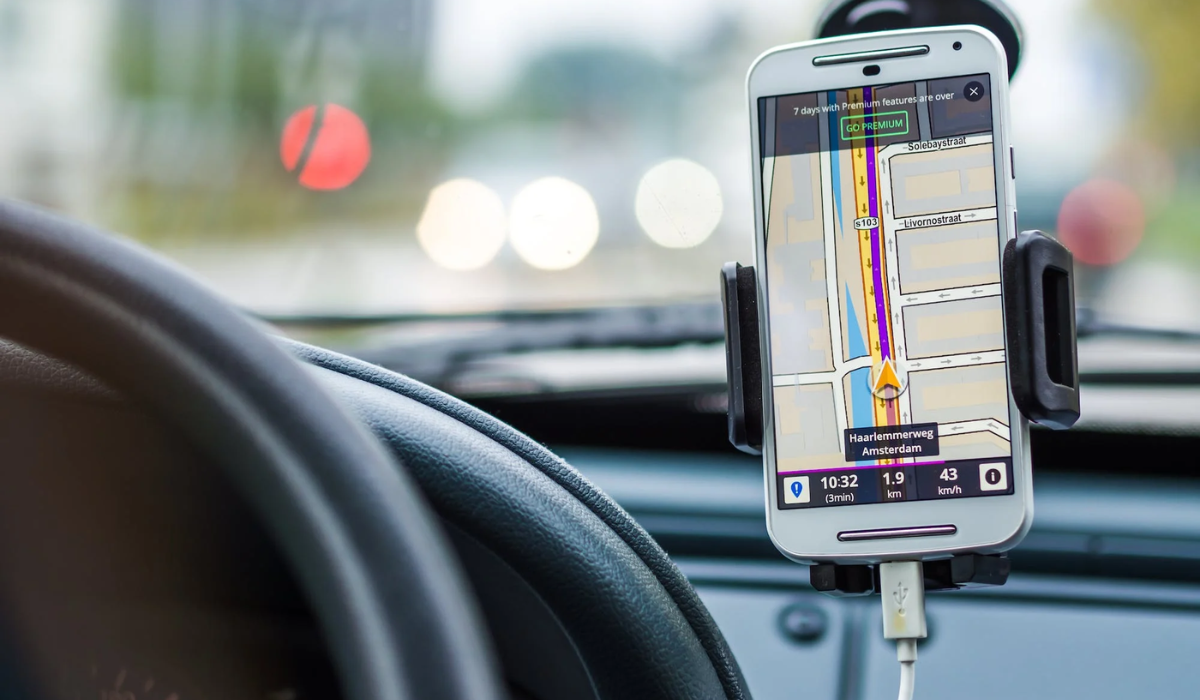
Imagine you’re cruising down the open road, jamming to your favorite tunes, when suddenly your phone slips off the passenger seat, causing a mini-heart attack. That’s where a car holder for your cell phone swoops in to save the day.
But, what’s a car holder, you might ask? Think of it like a trusty sidekick that keeps your phone secure and within reach while you conquer the streets. Not only does it provide a convenient hands-free experience for navigation and calls, but it also adds a touch of style to your car’s interior.
Now, why is a car holder important? Well, apart from preventing those heart-stopping phone drops, it ensures your focus stays on the road, where it belongs. With your phone securely mounted, you can effortlessly follow GPS directions, make important calls, or even entertain passengers with hilarious TikToks (safely, of course). It’s all about convenience, safety, and keeping your eyes on the prize—the road ahead. That being said, here are some of the best car holders for cell phone devices in 2023
Belkin Car Universal Mount
The Belkin Car Universal Mount is the top choice for a car phone holder. It excels in stability with its strong suction cup and locking mechanism. You can trust that it will securely hold your phone, even when faced with force. If windshield mounting is not an option due to legal restrictions, this holder also comes with a base for dashboard mounting. The 360-degree rotation and 90-degree tilt allow for easy positioning of your phone.
The pinching mechanism provides a stable grip, passing shake tests with both iPhone 11 and 14. The only downside is that the base is a bit bulkier, which may pose a challenge on cluttered or tight dashboards. It’s compatible with phone widths ranging from 6.5 cm to 9.5 cm and can be attached to either the windshield or dashboard.
iOttie Easy One Touch 5
The iOttie Easy One Touch 5 is a fantastic value car phone holder. It’s a simple mount that can accommodate almost any smartphone. You can adjust it horizontally to fit different screen sizes, and its clamp-style design ensures a secure hold. The best part is that it has a one-touch release system, making it super easy to insert and remove your phone with just one hand. It has a strong suction cup that keeps it in place, even on bumpy rides.
The mount can be applied to both the windshield and dashboard, and it features a telescopic arm with a ball-and-socket joint for versatile viewing angles. The only downside is that the dashboard mounting disc doesn’t work well on curved dashboards. Overall, it’s a great choice for its functionality and affordability. It’s compatible with phone widths ranging from 7.8 cm to 10.9 cm and can be attached to either the windshield or dashboard.
Belkin BoostCharge Pro Wireless Car Charger
The Belkin BoostCharge Pro Wireless Car Charger with MagSafe is the ultimate car phone holder with a built-in charger. It takes the already impressive Car Vent Mount Pro and adds a Qi-compatible charger, making it the first MagSafe-certified car charging mount available. You’ll love the convenience of one-touch mounting and charging with this accessory. It charges your phone while securely holding it in place, thanks to the magnetic functionality that allows for easy positioning and removal.
The sleek design of this holder is also a plus, as it virtually disappears when your phone is fixed to it. However, it’s important to note that this model is only compatible with iPhones 12, 13, and 14. If you have a different phone make or model, you’ll need to explore other options for car charging and phone holding.
Andobil Car Phone Mount
The Andobil Car Phone Mount is a versatile car phone holder that offers multiple mounting options. Whether you want to attach it to the windshield using a suction cup, the dashboard with the included dash mount, or the vents with the included vent clip, it provides flexibility. It also features a ball and socket joint and a telescopic arm, allowing you to find the perfect viewing angle for your phone.
With compatibility for various phone models ranging from 7.6 cm to 11.6 cm in width, it caters to a wide range of devices. While there have been some reports of issues with the suction cup, proper cleaning and sticking it to a flat surface can help ensure its effectiveness. Overall, the Andobil Car Phone Mount is a reliable option for securely holding your phone while driving.
Peak Design Mobile Car Mount VHB
The Peak Design Mobile Car Mount VHB is a versatile choice for both iPhone and Android users. It provides a magnetic experience, allowing iPhones to easily attach using MagSafe and Android devices to connect with a Peak Design case. This mount securely sticks to flat or curved surfaces using a strong adhesive.
However, it’s worth mentioning that once it’s mounted, its range of motion is somewhat limited. Overall, it’s a reliable option for securely holding your phone in the car.
To sum up, when it comes to finding the best car holder for your cell phone devices in 2023, the ones mentioned above stand out as a top pick. Each one offers unique features and benefits, allowing you to find the perfect fit for your needs. Consider factors such as versatility in mounting options, compatibility with various phone models, and ease of installation when making your decision.
Take your time to research and compare different options to ensure you find the best car holder that suits your preferences and keeps your phone secure while on the road. If you’d like to see more useful recommendations for phones or accessories, check out this category .
