Add MobilityArena as a preferred source on Google
If you’ve noticed your Instagram photos looking like they’ve been dipped in lava, don’t worry — you’re not imagining things. Many Google Pixel users are running into the frustrating Red Tint issue that makes colors look way off. Greens turn into rusty browns, skies lose their blue charm, and skin tones take on an unnatural, sunburned hue. This Red Tint glitch seems to hit hardest when using the Instagram in-app camera, leaving your otherwise stunning shots looking overcooked. If you’ve been wondering why your feed suddenly looks like it’s filmed on Mars, this pesky Red Tint problem is the culprit — and you’re definitely not the only one dealing with it.

- Step 1: Reinstall Instagram
- Step 2: Clear Instagram Cache and Data
- Step 3: Toggle Instagram’s Dark Mode
- Step 4: Adjust Display Settings on Your Pixel
- Step 5: Use Instagram’s Built-In Photo Editor Before Posting
- Conclusion

Step 1: Reinstall Instagram
Sometimes, apps just need a fresh start — kind of like us after a good night’s sleep. Uninstall Instagram, then reboot your phone. Once you’re back, reinstall Instagram from the Play Store . This simple reset often clears app glitches causing color distortion.
Step 2: Clear Instagram Cache and Data
Instagram stores data to speed things up, but sometimes this cached info gets corrupted:
- Head to Settings > Apps > Instagram.
- Tap Storage & cache.
- Clear Cache first; if issues persist, clear Storage/Data (Warning: This will log you out, so keep your password handy!).
This clears any weird settings or corrupted files causing the red tint.
Step 3: Toggle Instagram’s Dark Mode
Here’s a quirky fix that’s gained traction: toggle Instagram’s dark mode setting.
- Open Instagram, go to your profile, tap Settings > Theme.
- Switch between Light and Dark mode.
Some users find toggling this setting resets how Instagram renders photos, reducing tint effects. Pixel’s AMOLED screen sometimes interacts oddly with Instagram’s theming — this trick is like giving it a little nudge.
Step 4: Adjust Display Settings on Your Pixel
Since this might partly be a system-level display calibration issue:
- Turn off Adaptive Brightness via Settings > Display > Adaptive Brightness.
- Set the color mode to Natural in Settings > Display > Colors.
- Restart your device after changing these settings for good measure.
Step 5: Use Instagram’s Built-In Photo Editor Before Posting
Sometimes, Instagram’s upload compression adds weird saturation:
- Edit your photo inside Instagram’s editor.
- Slightly decrease the saturation or adjust warmth before posting.
- Alternatively, edit photos using Google Photos or Snapseed first, then upload.
Conclusion
Both Google and Instagram are already aware of the Red Tint glitch and are working on permanent fixes. In the meantime, it’s a good idea to report the issue through Instagram’s support page or Google’s Pixel support page — your feedback can help speed up the patch rollout. By following these quick steps, you can reduce or even fix the Red Tint problem and get back to capturing your best moments. Don’t let the Red Tint dull your shine — snap confidently once again!
Author:Ifeoluwa Adeleke
Add MobilityArena as a preferred source on Google
Battery life can make or break your smartphone experience — especially if you’re a Pixel user who’s constantly on the go or multitasking. Google has packed its Pixel phones with clever tools and settings designed to help you Extend Battery Life without sacrificing performance. With a few smart tweaks and habits, you can easily extend Battery Life through your busiest days, whether you’re streaming, scrolling, or snapping photos. So if you’ve ever wished your phone could last just a little longer, these tips will show you how to Extend Battery Life the smart way.

- Here’s a practical guide on How to Extend Battery Life on your Pixel
- Embrace Adaptive Battery
- Use Battery Saver and Extreme Battery Saver Modes
- Master Adaptive Charging
- Ditch the Bright Lights with Dark Mode and Adaptive Brightness
- Turn Off Motion Sense
- Manage Battery-Hungry Apps
- Optimize Screen Timeout
- Avoid Full 5G If You Don’t Need It
- Regularly Restart Your Pixel
- Keep Software Up to Date
- Conclusion
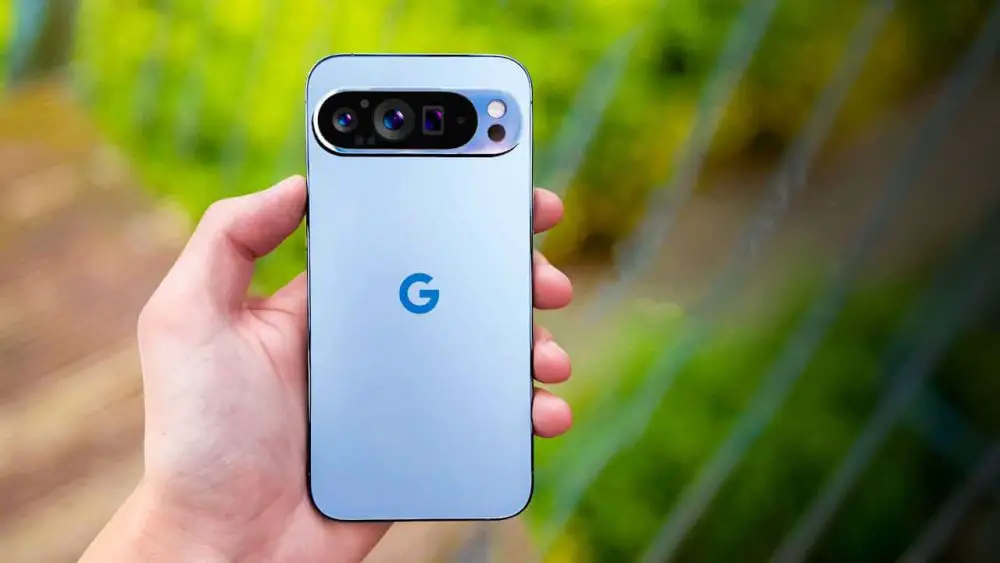
Here’s a practical guide on How to Extend Battery Life on your Pixel
Embrace Adaptive Battery
Adaptive Battery uses AI to restrict background activity for rarely used apps. Enable it in Settings > Battery > Adaptive Battery to let your Pixel play favorites with power.
Use Battery Saver and Extreme Battery Saver Modes
Battery Saver is your quick fix for conserving power — with it, background apps pause, notifications quiet down, and the dark theme kicks in to save juice. Extreme Battery Saver takes this further by allowing only essential apps to run, stretching your battery for days in critical situations. Find these in Settings > Battery.
Master Adaptive Charging
Protect your battery’s long-term health by enabling Adaptive Charging (Settings > Battery > Adaptive preferences). It paces charging overnight to prevent overcharging stress.
Ditch the Bright Lights with Dark Mode and Adaptive Brightness
AMOLED screens love dark themes — it uses less power to light up fewer pixels. Lower brightness and turn on adaptive brightness to adjust to your environment.
Turn Off Motion Sense
Google’s Motion Sense feature listens for gestures but can quietly sip battery while waiting. Turn it off under Settings > System > Motion System if battery life is tight.
Manage Battery-Hungry Apps
Check Settings > Battery > Battery usage for apps draining power, and restrict background activity or uninstall seldom-used offenders.
Optimize Screen Timeout
Set your screen timeout to the shortest comfortable duration (around 15-30 seconds) so your display doesn’t stay lit longer than necessary.
Avoid Full 5G If You Don’t Need It
Switch to LTE (Settings > Network & internet > Mobile network > Preferred network type) when 5G coverage is spotty to save battery.
Regularly Restart Your Pixel
Giving your phone a reboot every few days clears processes and refreshes system resources, helping battery efficiency.
Keep Software Up to Date
Google’s updates often include battery performance fixes; install them promptly via Settings > System > System update.
Conclusion
Managing your Pixel’s power doesn’t have to be complicated — or mean missing out on the fun stuff. With a few smart habits, you can extend Battery Life and keep your phone running strong all day long. Whether you’re juggling work, streaming, or snapping photos, these small tweaks can make a big difference. So take charge (literally), apply these tips, and Extend Battery Life like a pro — because when you Extend Battery Life, you’re really extending how much you can do with your Pixel.
