Add MobilityArena as a preferred source on Google
Xiaomi Mi 11 has launched as the latest flagship device from the Chinese company. The Xiaomi Mi 11 launched with the Qualcomm Snapdragon 888 SoC, making it the first device to launch with this new chipset, which is tipped to power a number of other devices next year. The Qualcomm Snapdragon 888 is expected to provide top-notch processing for smartphones.
Xiaomi Mi 11 runs on MIUI 12 based on Android 10 and is built around a 6.81-inch 2K WQHD (1,440×3,200 pixels) AMOLED display with a 120Hz refresh rate and a touch sampling rate of 480Hz. Under the hood, the novel Qualcomm Snapdragon 888 SoC works in tandem with 12GB of LPDDR5 RAM to keep this device ticking. The Xiaomi Mi 11 launched with 256GB of onboard storage and also supports 5G technology.
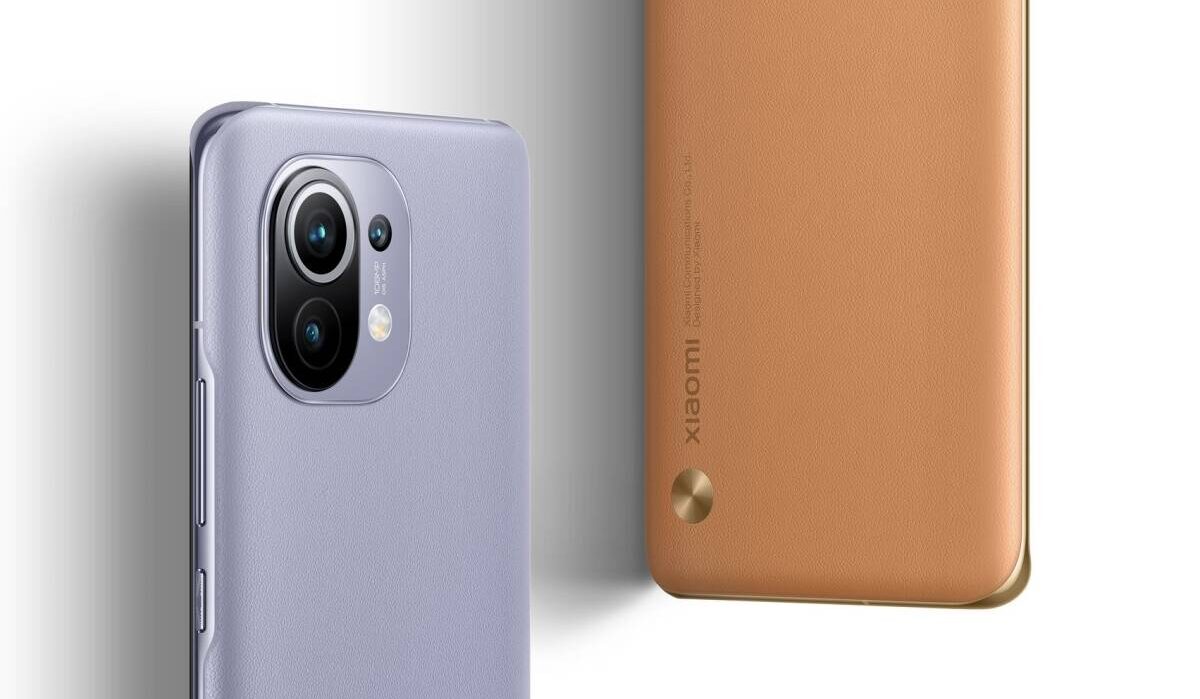
In the camera department, Mi 11 offers a triple rear camera setup with a 108MP main camera headlining this setup. This camera is believed to be almost 4 times bigger than the iPhone 12 ’s and is designed to capture up to 8K videos. This camera is assisted by a 13MP secondary shooter, and a 5MP tertiary sensor. This device also has a feature that enables it capture low-light videos. Up top, a 20MP selfie shooter housed in a punch hole in the top left corner takes care of video calls and selfies.
The Xiaomi Mi 11 launched with a 4,600mAh battery that supports Mi TurboCharge 55W wired and 50W wireless charging. This device is available in three variants: an 8GB+128GB model that costs CNY 3,999 ($612), an 8GB+256GB variant that sells for CNY 4,299 ($658), and a top-of-the-line 12GB+256GB model that costs CNY 4,699 ($720).
Notably, this device will not ship with a charger in its pack.
Xiaomi Mi 11 Price and Specs
- OS: MIUI 12 based on Android 10
- Release Date: December 2020
- RAM: 8/12GB
- ROM: 128/256GB
- Network Type: 4G/5G
- Selfie Camera: 20MP
- Rear camera: 108MP+13MP+5MP
- Display: 6.81-inch 2K WQHD (1,440×3,200 pixels) AMOLED display with a 120Hz refresh rate
- Battery: 4,600mAh with 50W wireless charging support
- Processor: Qualcomm Snapdragon 888
- Price: Starts at $612
The Xiaomi Mi 11 will be available in anti-glare (AG) frost glass finish in Frost White, Horizon Blue and Midnight Gray colors. This smartphone will go on sale starting from the 1 st of January 2020 in China. The Xiaomi Mi 11 Global version has some differences and goes on sale in February 2021.
References
- Source ;
- Source .
Author:Alfa Baye
Staff Writer
Add MobilityArena as a preferred source on Google
Today, we go a step further to show you some of the most common Samsung Galaxy S10 problems and how to fix these issues.
The Samsung Galaxy S10 series launched in spring of 2019, with the Samsung Galaxy S10, S10e and S10 Plus making up this series. These smartphones grew very popular, with tons of units sold in different parts of the world.
However, like everything in life, these devices were not perfect and experienced a number of problems. Today, we’ll be looking at those problems and how to solve them without breaking a sweat.
- Common Samsung Galaxy S10 Problems and Solutions
Common Samsung Galaxy S10 Problems and Solutions
- Issues with Fingerprint Reader : As per complaints on XDA Developers forum, a number of S10 users received error messages telling them to press harder on the readers, while another section said the fingerprint readers only worked occasionally.
- Issues regarding fingerprint readers were addressed in new updates, so you can try updating your phone’s operating system. However, if you still have these issues, you can try removing your screen protector and see if the issue improves.
- Try centering your thumb on the sensor rather than scanning from the side.
- Also, you can try unchecking the screen sensitivity button. You can check Settings > Display > Touch Sensitivity switch .
- If none of the tips above work, you may need to return this device to the manufacturer.
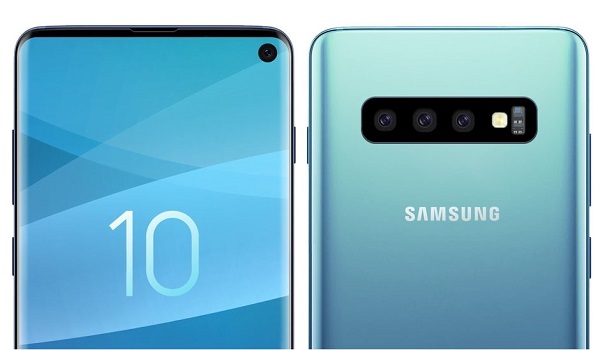
- Weak Internet Connection : A number of Samsung Galaxy S10 Plus users have complained about a weak 4G connection on their devices, with webpages and other content loading too slowly. On closer observation, we noticed that most of the users who made this complaint use the same carrier, meaning that it may not be a Samsung problem after all. However, if you experience this problem, you can take the following steps to fix it:
Update your device software. Go to Settings > Software Update > Download and Install . After restarting your device, your internet connection should be better, if it is not, please contact your network carrier immediately.
- Bluetooth Connection Disappearing : Not too long after the launch of the S10 series, a number of users complained about their devices interrupting Bluetooth connections, ultimately interrupting songs and phone calls made with Bluetooth earphones. When the Bluetooth is turned on, it connects properly but then strangely disconnects while the display is off.
- Check your phone’s app optimization settings to ensure the Bluetooth app does not go to sleep when your phone screen goes off.
- If the issue is with a specific app, you can turn off optimization just for that app. Go to Settings > Apps , click on the three dots in the top right hand corner then select Special access > Optimize battery usage . Ensure the drop-down box says All , then search for the app in question and untick it.
- Apps that are not full screen : With screen sizes ranging between 6.1” and 6.4”, certain apps do not use the entire screen on the Samsung Galaxy S10. This is due to the aspect ratio of the device. While most games and apps can scale up to the whole screen, a number of other apps do not and this may present a headache for its owner. This is one of the most common Samsung Galaxy S10 problems.
Well, if this is you, you can follow these simple steps to fit the app to the full screen:
- Pull down the notification bar and go to Settings .
- Click on Display .
- Select Full Screen apps .
- Click on any app that is not full screen, then switch it from Auto to Full screen .
Hopefully, these solutions to some of the most common Samsung Galaxy S10 problems will help you fix a few issues with your phone.
If you are currently experiencing any glitches with your Samsung Galaxy S10 device outside of the ones mentioned above, you can take a look at this article where we showed you quick fixes for Samsung Galaxy smartphones.
Author:Alfa Baye
Staff Writer
