Add MobilityArena as a preferred source on Google
Popular video conference app Zoom suffered an outage in the different parts of the world on Monday. Users of the app took to social media to comment on this unexpected occurrence, with the company getting the service back up in short time.
Zoom has become the go-to app for most work meetings and school engagements in light of the pandemic, with millions around the world depending on it to communicate with their peers and colleagues. Reports suggest that problems first surfaced on Monday, as Zoom’s status page displayed a partial outage for Zoom Meetings and Zoom Webinars.
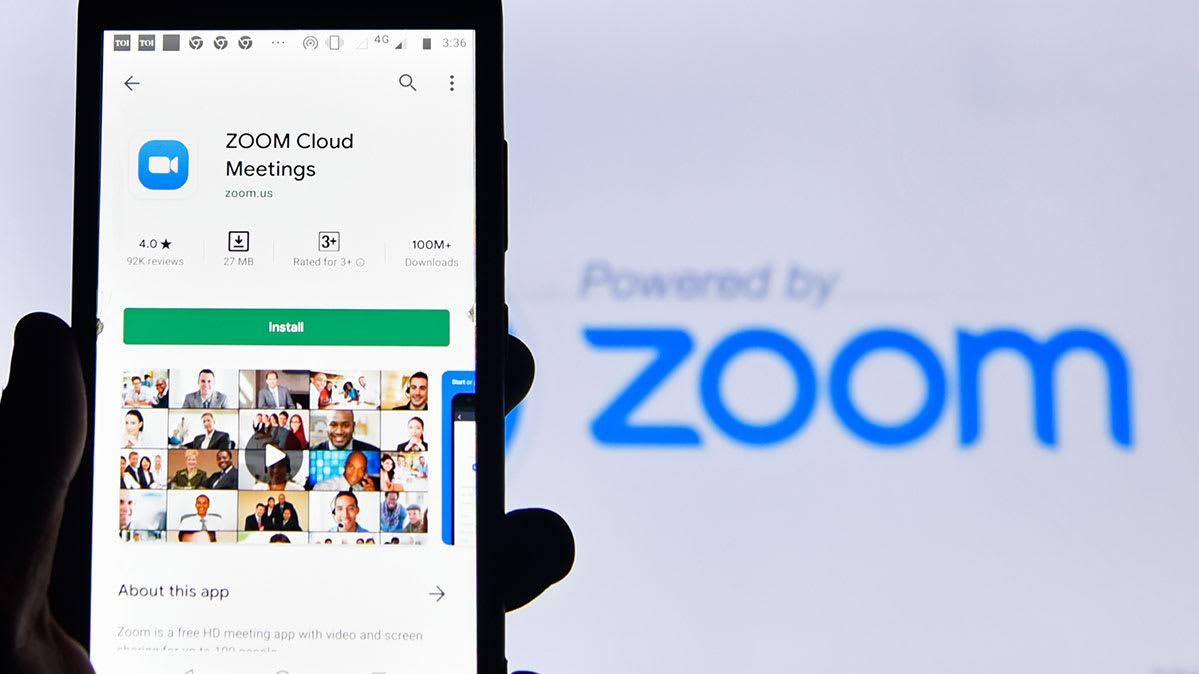
The company acted swiftly and decisively to restore normal operations to the video conference app. It also thanked users for their patience via Twitter throughout the down time, while explaining that there were still a few problems with people who signed up for paid accounts or wanted to upgrade their accounts.
While interruptions in services like this are not totally uncommon, there is no telling how much disruption the outage caused, especially at a time where a lot of people now depend on video conferencing apps to attend classes or work meetings. Hopefully, scenarios like this would occur less frequently in the coming days.
References
- Source ;
- Source ;
- Source .
Author:Alfa Baye
Staff Writer
Add MobilityArena as a preferred source on Google
How did I come about writing an article on how to connect your wireless printer to your laptop and mobile phone? We have had a wireless printer lying around for many months without being put to use. Eventually a need arose and I had to set it up and put it to use.
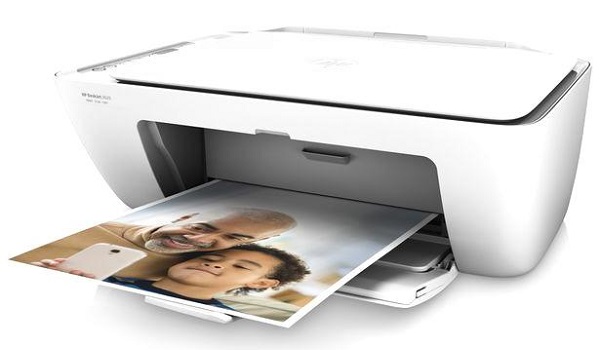
Before then, we just never had any reason to use it. It is an HP Deskjet 2620 all-in-one printer. That means it prints, scans, and photocopies. For a long time, we didn’t have any reason to put it to use, so it just sat there in its box.
Eventually, when the need arose, I dragged it out for use. And that was when I found out that there was no printer cable included in the box, so the only option available to me was to use it wirelessly. What?! I had hoped that I’d be able to quickly get the document printed via a cable. But that was not to be. I had to set it up for wireless printing or go find somewhere to print the urgent document that I needed.
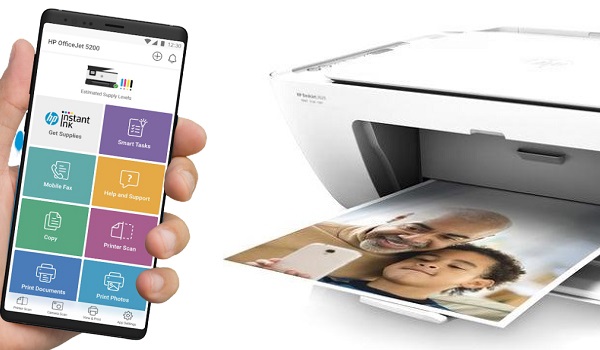
Connect your wireless printer to your laptop and phone with HP Smart app
Argh! Well, if you’ve got a task at hand, there is no point sitting down wishing you didn’t have it. Just get up and get it done. Which is what I did. I was able to connect the wireless printer to both my laptop and phone. And in sharing my experience, I also provide you with a guide on how to connect your wireless printer to your laptop and phone.
The steps presented below, obvously, are for connecting an HP wireless printer, but they can also serve as a guide for any other brand of wireless printer.
- How does a wireless printer work?
- How to connect your wireless printer to your laptop and phone
- How to print from your wireless printer from your phone
- How to print from your wireless printer from your laptop
How does a wireless printer work?
Instead of using a cable to connect to PC, laptop or smartphone, a wireless printer uses Wifi as the means of connecting. When powered on, it creates a wifi hotspot which you connect to with your PC, latop or cell phone.
How to connect your wireless printer to your laptop and phone
I plugged in the power cable and setup the physical aspects of the printer. Next, I clipped in the ink cartridges and pushed the power button to switch it on. I had printing paper ready. All I needed to do now was connect the printer to my laptop and smartphone.
I headed to Google Play Store and downloaded the HP Smart app and proceeded to make the connection. It was at that point that the app told me I needed to install another app, HP Print Service Plugin. This is supposedly the app that would let me connect my HP wireless printer to my laptop or smartphone.
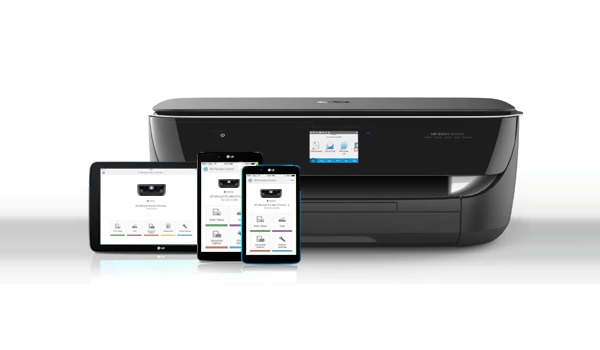
Errrr….so what was the HP Smart app for again? The Play Store info says you use the plugin to print, scan, share and manage your HP printer. This is a complicated relationship, clearly.
Anyway, you can download HP Smart app HERE , and the HP Print Service Plugin HERE . If you own a different brand of wireless printer, search the Play Store for their mobile printing app and install it. If you use an iPhone, the place to check is the App Store.
After I installed the plugin, my smartphone prompted me to connect to a Wifi network. Looking through the phone’s list of available Wifi networks, I spied one I had not seen before. It bore the printer’s model name. Apparently, the printer had created a wireless hotspot when I switched it on. I tapped it and my Android phone connected to it in a moment.
How to print from your wireless printer from your phone
- Make sure your wireless printer is on
- Turn on the Wifi on your phone and connect to the printer’s hotspot
- Open the document you want to print
- Tap the “ More ” icon and select “ Print “,
The document will be sent wirelessly to the printer and be printed out.
How to print from your wireless printer from your laptop
- Make sure your wireless printer is on
- Turn on the Wifi on your laptop and connect to the printer’s hotspot
- Open the document you want to print from your laptop
- Select “ Print ” from the menu and follow the prompts
The document will be sent wirelessly to the printer and be printed out.
Note that the first time I tried to print a document, nothing happened; it didn’t go through. The HP Smart app then prompted me to print out and scan a Printer Alignment Page. If this happens to you the fist time, follow the app’s prompts to do this. Once you are done printing it and scanning it, the printer is ready for work and you may go ahead and print your documents.
The setup of a wireless printer can be a tad tasking, but with the above guide, you should suffer less from the process. I had no guide and had to find my way through on my own.
Author:Mister Mobility
Digital Skills and Communication Coach | Mobile Phone Connoisseur since 2001 | Tech Blogging since 2004
Add MobilityArena as a preferred source on Google
How long can you use a power bank? I never had to ask this question until recently. I have had power banks that served me well for such long periods of time that I never needed to ask. You know how some things are not a problem to you until you notice an abnormality? Yes.
For example, I have never had to worry about the mileage of my car. But if I fill my fuel tank and run out of fuel within 3 days without doing anything out of the ordinary with the car, I shall immediately begin to question its fuel consumption.
How long can you use a power bank?
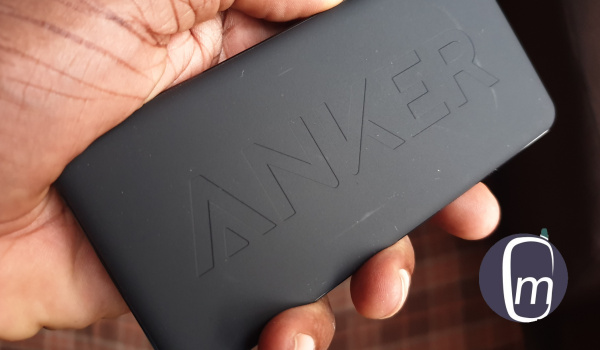
That is what has happened to me with my power bank. I began to use the Anker PowerCore II Slim 10000 mAh portable battery in June 2019. Some months ago, I noticed that I would plug it into the power mains to charge for hours and end up with two LED lights instead of four. Four LED lights indicate a full charge.
If I unplugged it and plugged it back in one or two times, it would then charge fully. That behaviour was odd. And it began to get worse. Now, the power bank barely charges beyond one LED light. Drats.
I used another portable battery before this one, an Oraimo Fast Charging 10000mAh power bank , and it was still in active use by its new owner, and giving no such issues. What made it even more interesting was that this Anker unit was a more expensive device than the Oraimo.
In other words, my newer, more expensive Anker PowerCore II Slim 10000 mAh portable battery was misbehaving about a year into use, when an older, less expensive model still worked flawlessly.
- So, how long can you use a power bank?
- Fixing the problem: Resetting the Anker PowerCore II
- How to reset Anker PowerCore II Power bank
- How to use a power bank the right way
- Shopping for a new power bank?
- Is there anything to avoid when buying a power bank?
- Conclusion
So, how long can you use a power bank?
To answer this question, a good power bank should serve you well for nothing less than two years. In many cases, portable batteries work well into 3 or 4 years.
If a power bank is misbehaving after a year of use, there is a problem with it. What made this sad is that Anker is known for their quality power banks.
Fixing the problem: Resetting the Anker PowerCore II
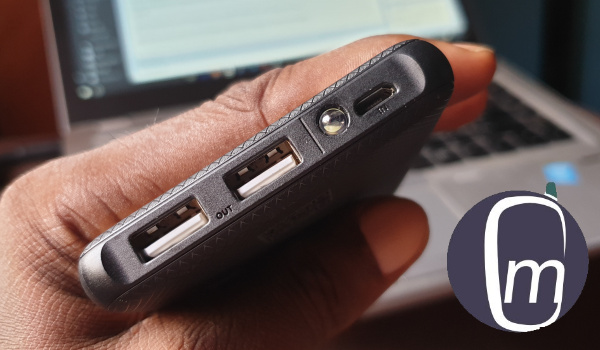
I ran a Google search to see if other Anker PowerCore II users were experiencing the same problem and found a few complaints like that. And I also found out that the device could be reset. Believe it or not, I had no idea that one could reset a power bank.
Anyway, this was new info, and I used it. I performed a reset of my PowerCore II and plugged it to the mains to charge. Voila! Problem solved. My power bank was charging as good as new again.
How to reset Anker PowerCore II Power bank
If you are already itching to find out what the reset process is like, here it is. The power bank comes wiith a short USB charging cable in the sales pack. To reset it, use this charging cable to create a loop – plug both its end iinto the two respective ports of the Anker – leaving it in for about 3 to 5 seconds. Some others say to leave it for up to 10 seconds. I did 5 seconds and pulled out the cable.
PS : I have no way of verifying that the above reset information is officially recommended by Anker, but it worked for me. If you use iit, you do so at your own risk. If possible, contact your device manufacturer for assistance.
I later also found a suggestion that pressing and holding the Power button for 30 seconds will reset it too. That sounds safer than the charging cable loop.
How to use a power bank the right way
As with all electronic items, a power bank can be misused and abused, leading to problems. If you want your power bank to function properly and last as long as it should, you need to observe certain rules.
- First, use the appropriate charging cable and charger: preferably use the supplied one. If you have to use a 3rd party cable and charger, make sure that you use the appropriate ones. For example, the Anker PowerCore II is a fast-charging portable battery. Using an inferior cable and a non-fast charger will produce less than satisfactory results.
- Avoid drops and all forms of violence. It may have a plastic shell, but it’s internal components can be damaged by shock.
- Avoid water and liquids. Liquid damage is a common gadget hazard. Most portable batteries are not waterproof, so keep them away from water and liquids generally. Using your power bank in the rain can damage it.
- Don’t leave your power bank discharged for long periods of time. Keep it charged. If possible, top it up before it runs out of juice completely. If you are going to leave your portable battery unused for a period, charge it up to at least the 40% or 50% mark before putting it away.
- Avoid extreme heat and cold environments.
- If you want to charge your smartphone with the power bank, do not plug the power bank itself into a power outlet at the same time.
Shopping for a new power bank?
If you are shopping for a new portable battery, here are some tips. Personally, I am not a fan of bulky gadgets. This is why I love the slim profile of the Anker PowerCore II. In my books, a power bank should not leave a bulge when in your trouser pocket. Anker PowerCore 10000 PD Plus is a newer model and a credible alternative to my current model, but it does not have that slim profile. Still, that just might be how you like your portable battery, so check it out.
If you can still find it in the market, the Soda SP60 6000 mAh portable battery performed well in our testing and usage. Finding it now is the real problem, as Soda Mobile has vanished from the market. There’s this cute itel power bank that I have reviewed and used, but it didn’t last either. It began to fail after some months of use.
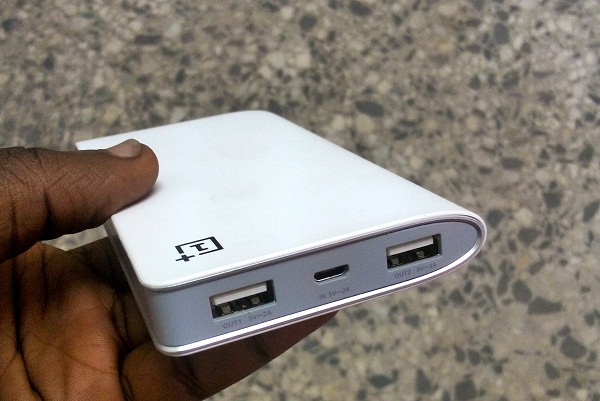
The good thing is that there are many portable battery products out there to pick from. Brands that I have used include: Oraimo, Xaomi, Anker, and OnePlus. There are others as well, so look out for them.
Is there anything to avoid when buying a power bank?
Yes! Those portable batteries that offer humongous battery capacity at ridiculously low prices? Stay. Away. From. Them. They are usually substandard products made by obscure manufacturers. Those ones will develop trouble quickly and die on you just as fast.
Conclusion
In closing, I am glad that my Anker PowerCore II is functioning well now and I do not have to replace it yet. Yay! Hopefully, I can squeeze 2 to 3 years out of it. But now, you also know what to expect from a good power bank in terms of life span. You also know the right way to use a power bank.
Author:Mister Mobility
Digital Skills and Communication Coach | Mobile Phone Connoisseur since 2001 | Tech Blogging since 2004
